Open Google Search Console
Starting point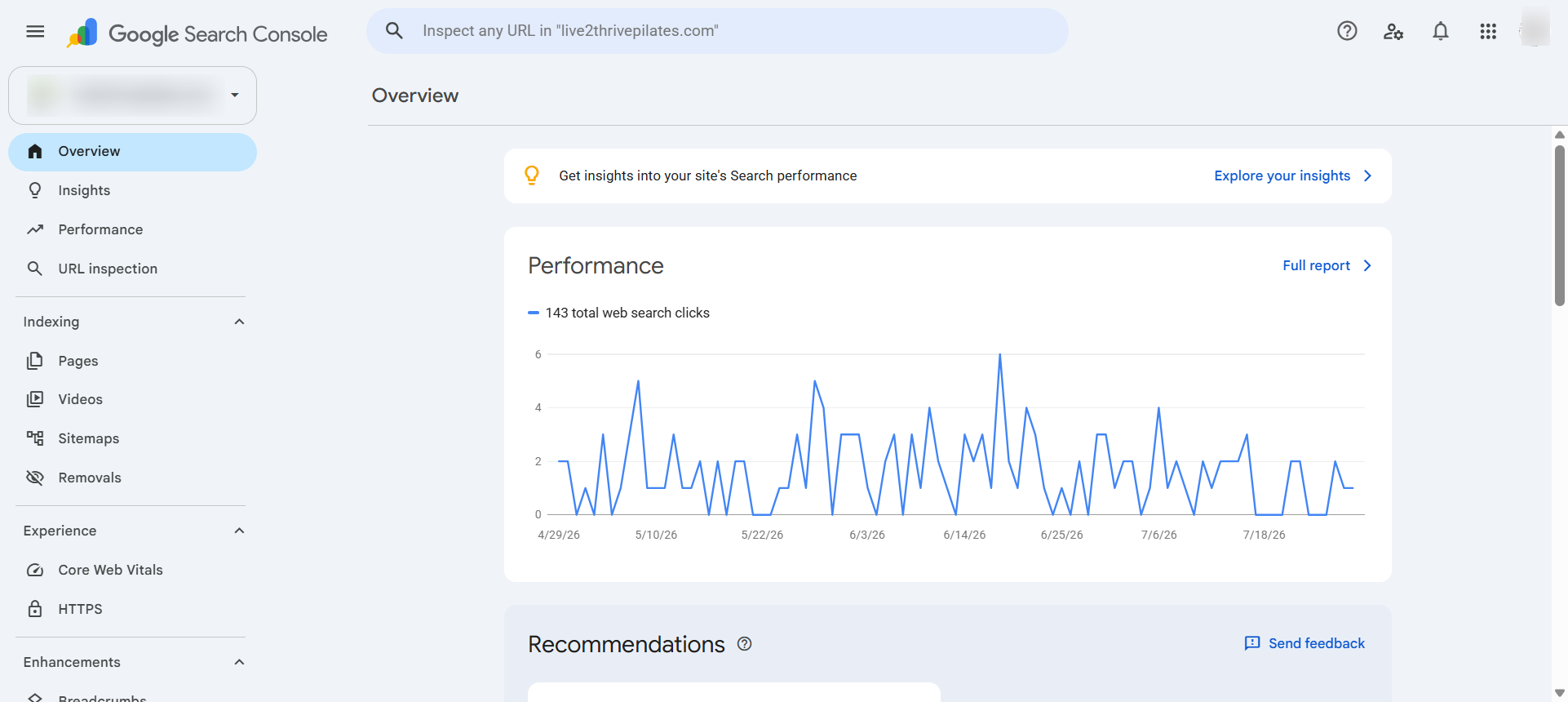
Go to search.google.com/search-console and sign in with the Google account linked to your website or social accounts. You'll land on the Overview dashboard for your current property.
Make sure you're signed in to the same Google account that owns the YouTube, Instagram, TikTok, or X account you want to connect.
Open the Property Selector
Top-left corner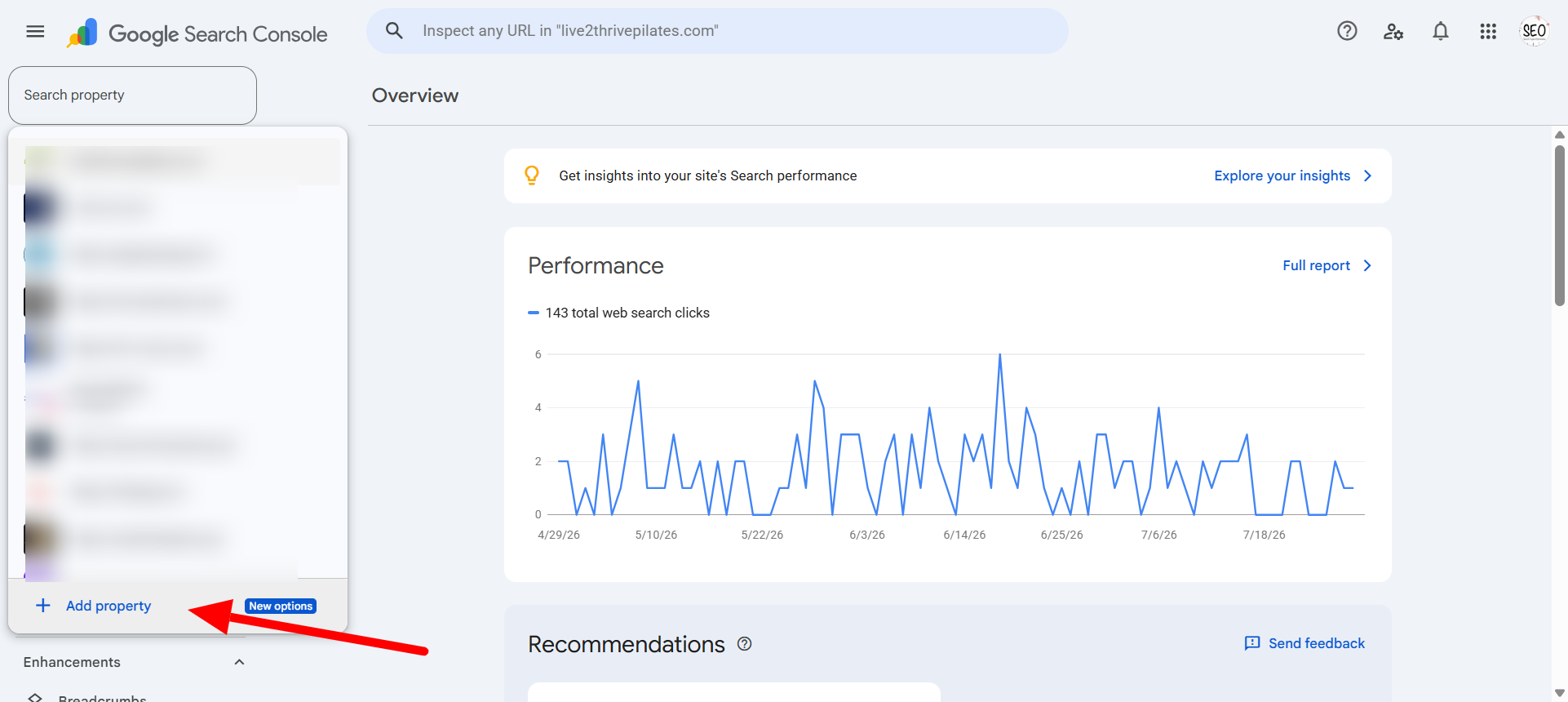
Click the property name in the top-left corner of the dashboard. A dropdown appears showing all your current properties. At the bottom, click '+ Add Property'.
The property selector is the dropdown showing your current site name (e.g. 'live2thrivepilates.com'). It's in the top-left, just below the Google Search Console logo.
Click '+ Add Property'
New section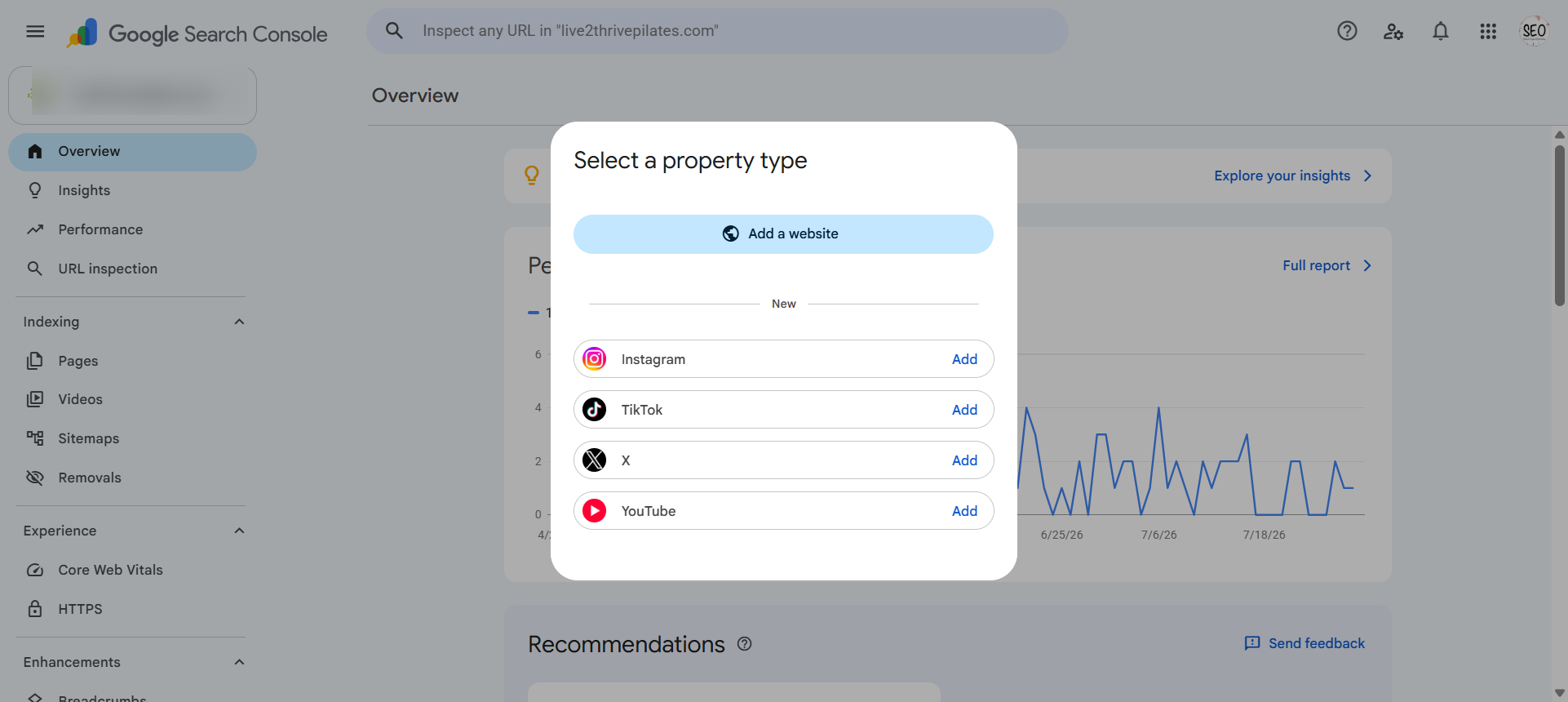
After clicking Add Property, a panel opens. You'll see the standard options (Domain, URL prefix) at the top, and a new section below them labelled with the supported social platforms.
This new section is separate from your website properties. It's where all four platform types live: Instagram, TikTok, X, and YouTube.
Select a Platform to Add
Four platforms supportedPlatform: Instagram / TikTok / X / YouTube
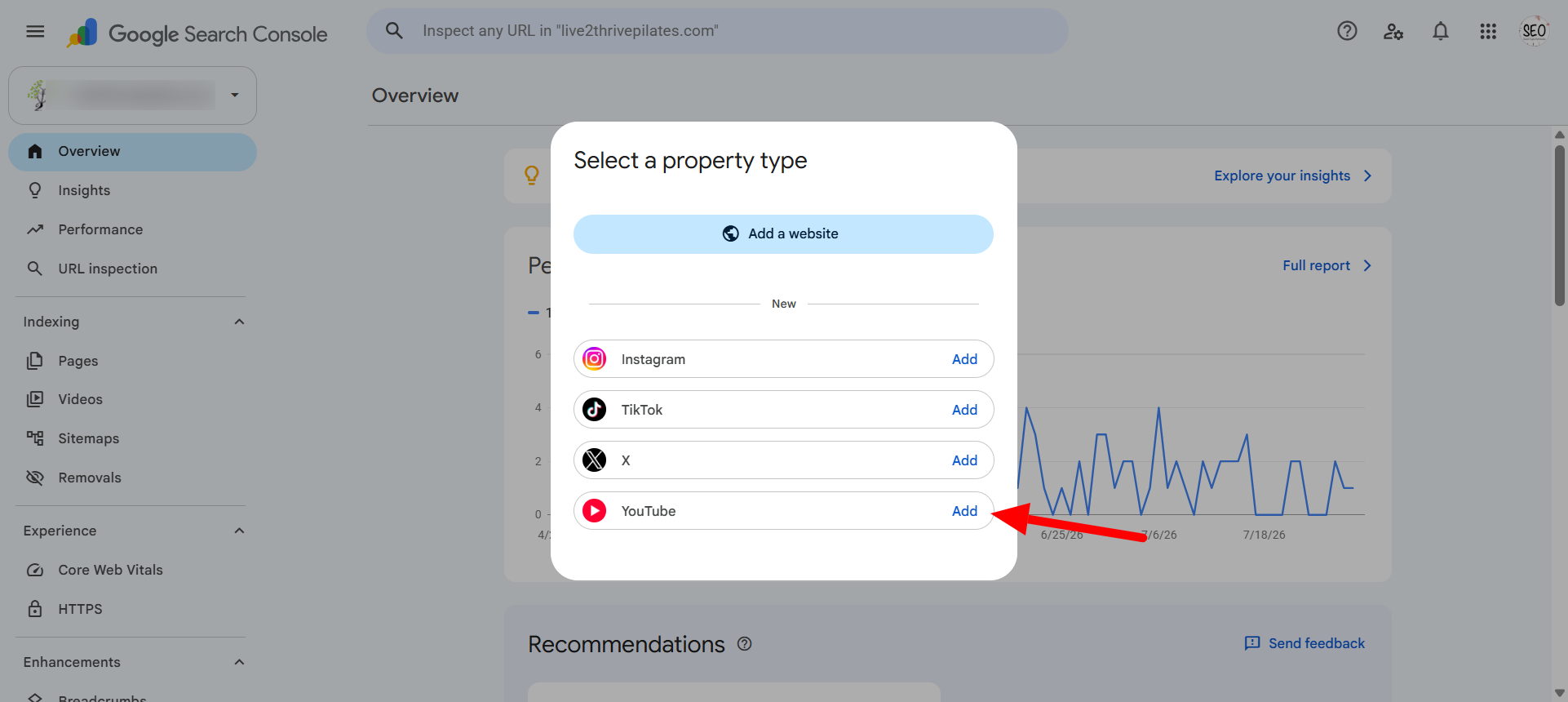
The 'Select a property type' dialog shows four social platforms: Instagram, TikTok, X (Twitter), and YouTube. Click 'Add' next to the platform you want to connect. Each platform requires a separate property, so you'll repeat this process for each one.
In this example, we're adding a YouTube channel. The red arrow in the screenshot highlights the YouTube Add button.
Choose Your Account
Account selectionPlatform: YouTube (example)
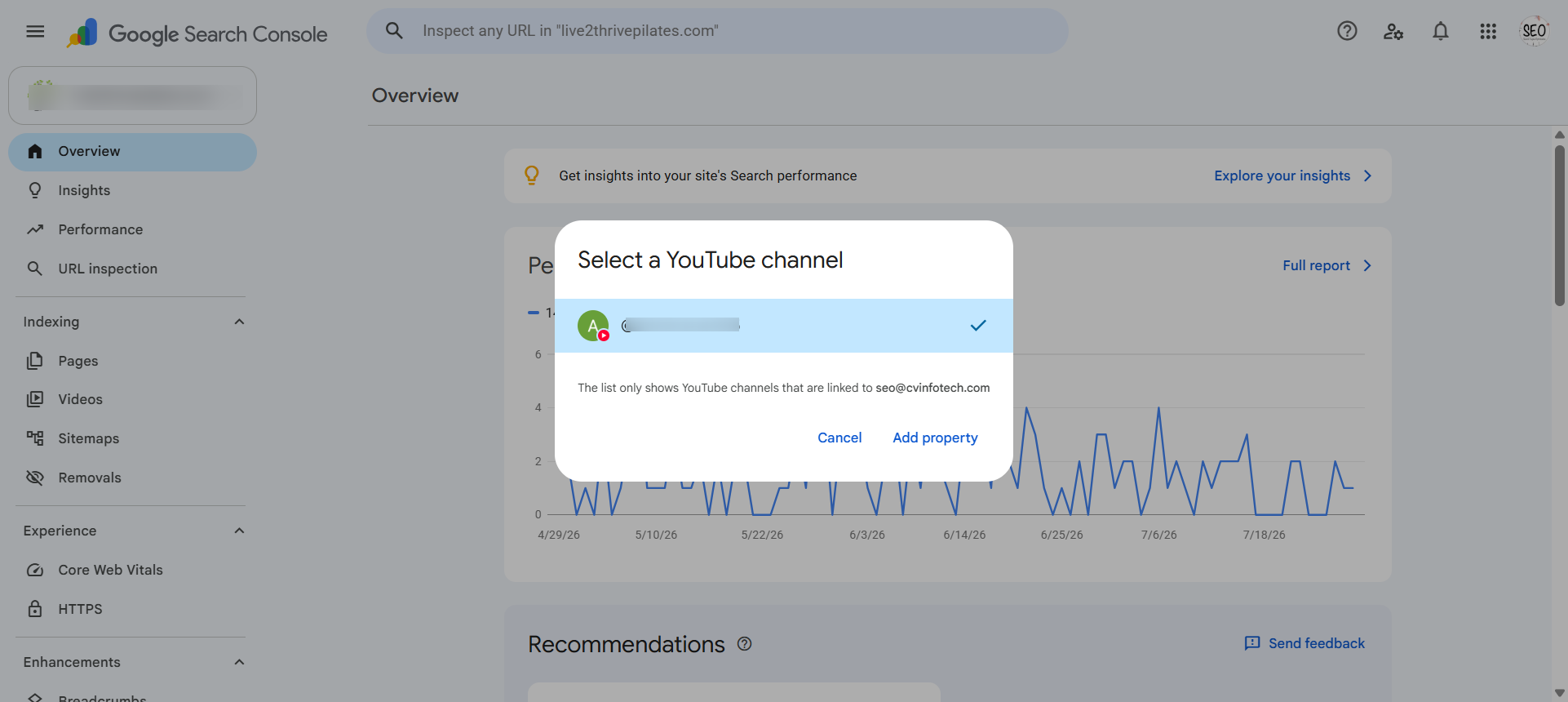
For YouTube, Search Console shows all channels linked to your Google account and asks you to select one. The dialog confirms which Google account is being used. Select your channel and click 'Add property'.
The list only shows YouTube channels linked to the Google account you're signed in with. If you don't see your channel, check that you're signed in to the right Google account.
Verification Complete
ConnectedPlatform: YouTube
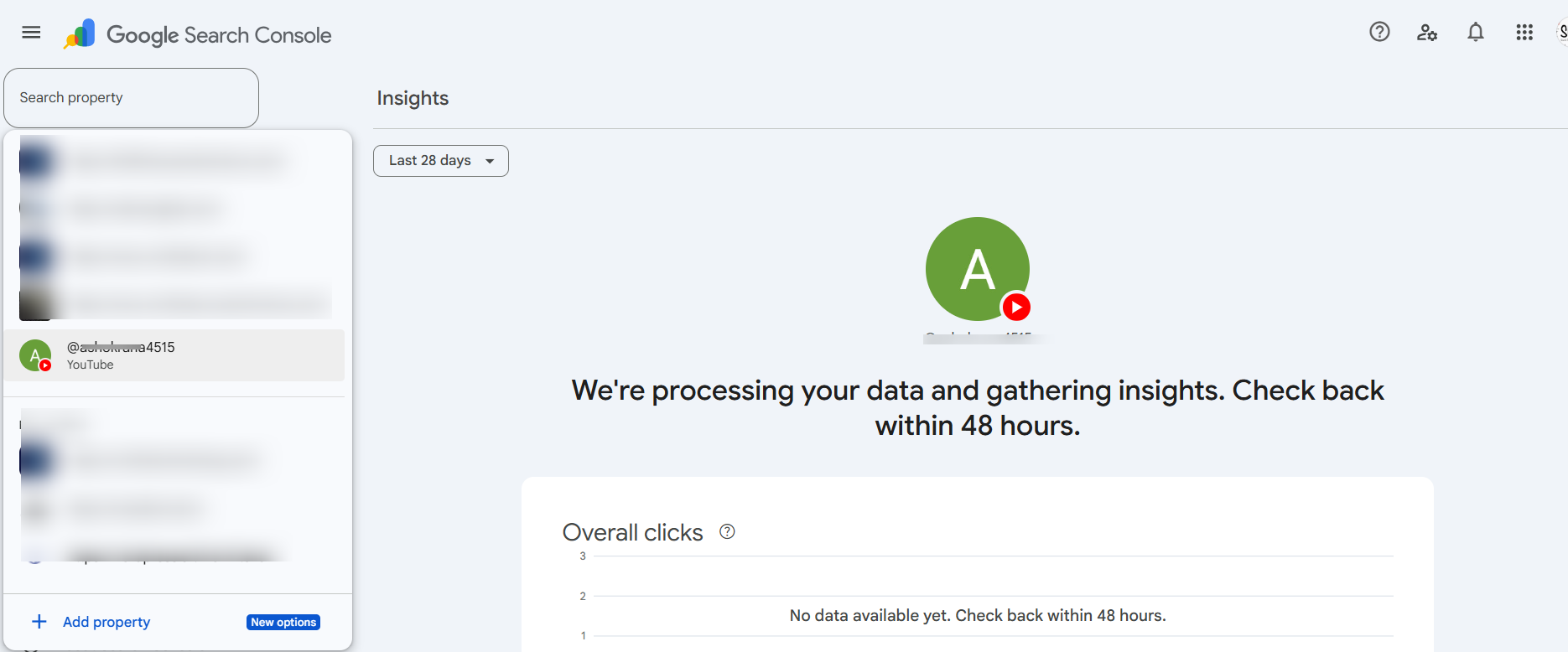
Once you've selected your account and confirmed, the platform appears in your Search Console property list. Search Console switches to the Insights view for the new property and shows a confirmation message that data is being processed.
The message 'We're processing your data and gathering insights. Check back within 48 hours.' is normal. It means the connection worked and Google is starting to collect data.
Your Platform Property Is Live
Done. Data incoming.Platform: YouTube
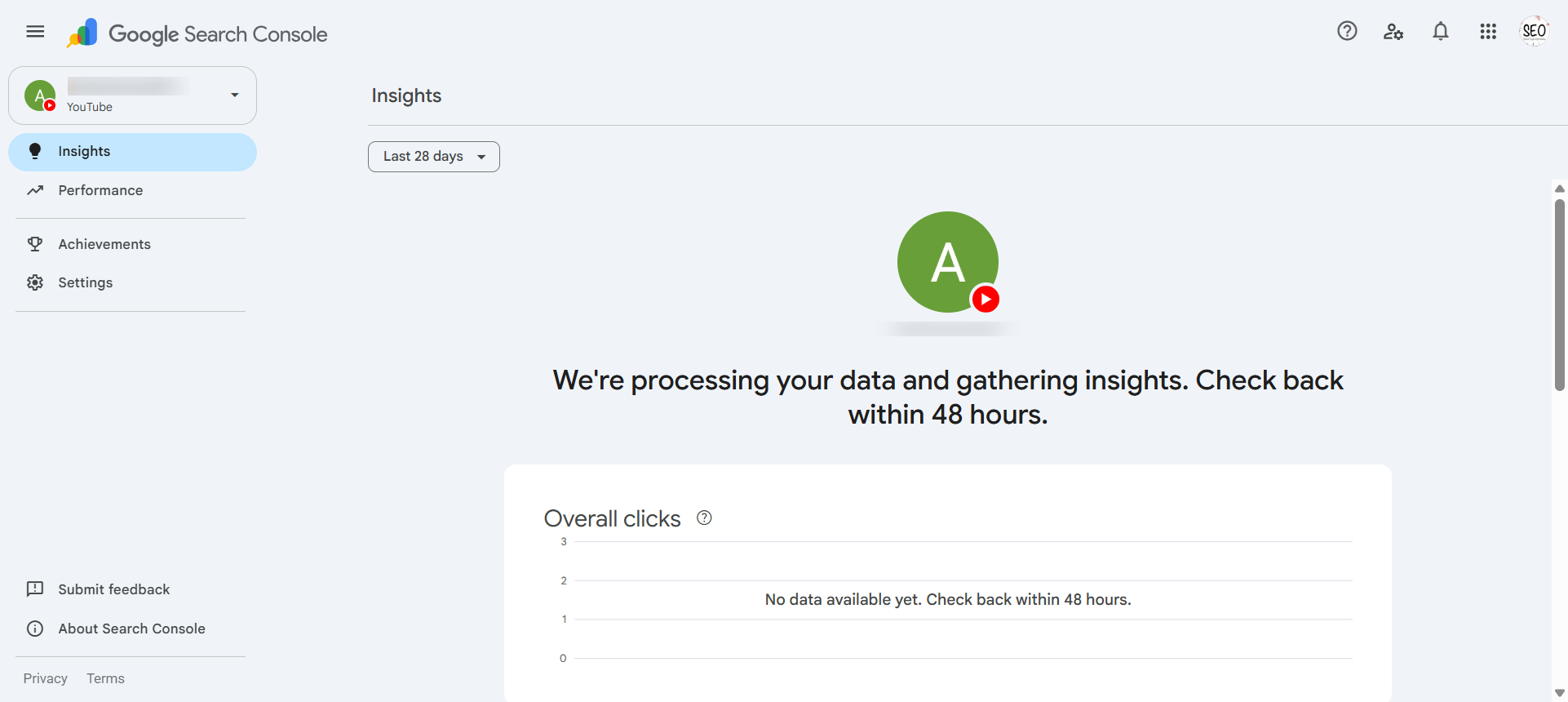
Your connected social account now appears in the property selector alongside your website properties. The left sidebar shows Insights, Performance, Achievements, and Settings. Performance reports take a few days to populate from scratch.
There's no historical backfill. Data starts accumulating from the date you verified, not before. Check back in 2 to 5 days for the first query data to appear.
You're connected. What's next?
Your platform property is now live. Give it 2 to 5 days for the first search query data to appear. Once it does, look at the Queries report first. Those are the exact terms people typed on Google before finding your content.
Read: What the data means and how to use itAll 7 Steps at a Glance
| Step | Action | Time |
|---|---|---|
| 1 | Open Google Search Console | 30 sec |
| 2 | Click the Property Selector | 10 sec |
| 3 | Click + Add Property | 10 sec |
| 4 | Select your platform (Instagram / TikTok / X / YouTube) | 30 sec |
| 5 | Sign in to your social account | 1 min |
| 6 | Verify and confirm | 30 sec |
| 7 | Wait for data | 2-5 days (automatic) |

Akash Singh
View full profileCTO and Co-Founder, CV Infotech · Gurugram, India
Akash has been building Websites, Web Apps, SaaS and Mobile Apps for clients in the USA, Europe, Australia, and Canada since 2012. He leads a 100% in-house team and personally manages every client relationship and technical decision. Francisco Escobar has worked with him since 2012. Steven has trusted the team with his AI platforms since 2019. 512 verified 5.0 reviews on Freelancer.com.